In the City Squares of

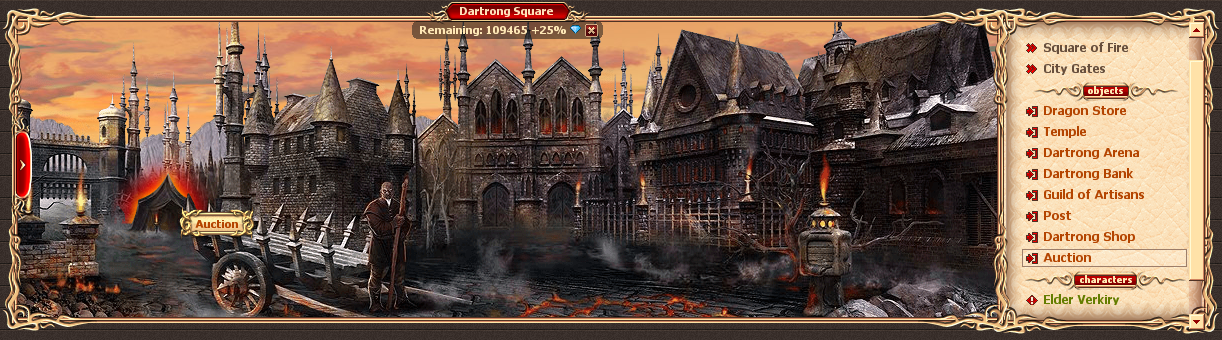
Dartrong and

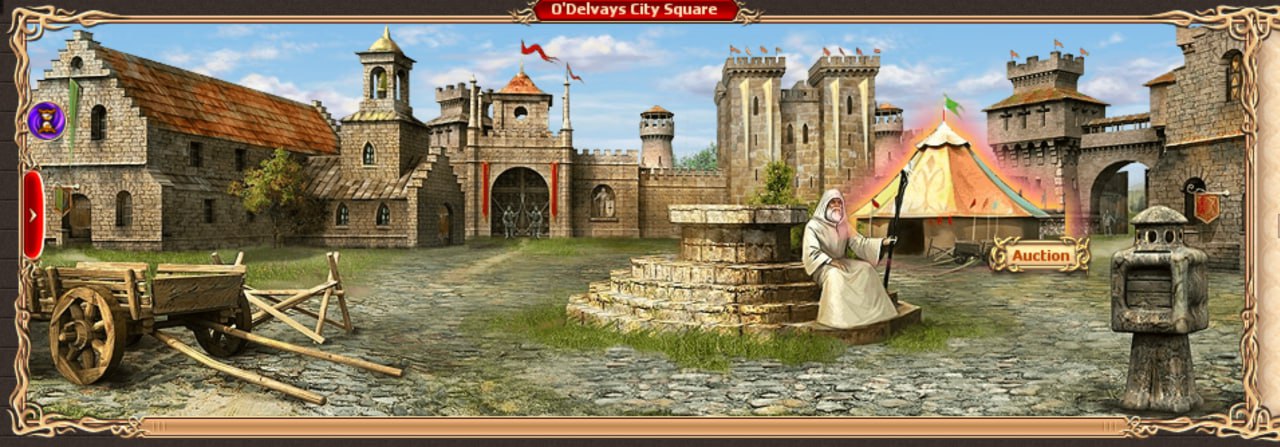
O’Delvays as well as the settlements of
Chernag and
Klesva, you can find Faeo’s Auction Houses. The Auction is the trading centre of the game and makes trading easier for everyone, whether you are buying or selling.
Availability: The Auction is available to all the warriors who have reached level 2.
You can access the Auction by clicking the auction bouble on top of your screens or via the Auction Houses.
The auction house has two chambers: Auction and Exchange. On the left side of the panel is the Auction chamber whereas the Exchange chamber is located on the right side of the panel. In both of the chambers you can buy or sell items but in slightly different approaches.
 |
Auction Chamber |
 |
In the Auction chamber, you will find 5 sections; Auction, My bids, My lots, New lot and Special lots. The purposes of these sections are:
- Auction: You can buy the items listed by other players.
- My bids: You can see the current items and the prices you bid.
- My lots: You can see the items you currently have listed.
- New lot: You can list a new item for sale.
- Special lot: This section is active only for a few days during special occasions.
.:: Searching for items ::.
On the Auction section, you can search for items using filters.

You can filter the items by Name, Quantitiy, Level, Class and Color. If you check the Friends box, you can even filter for the items listed by your friends. Once you set your filters, click OK and you will get all the listed items that fit in your criteria.
You will see that under the Time column, items show the approximate bidding time left.
- Long: 8-24 hours
- Average: 2-8 hours
- Short: 0-2 hours
Each item can have a Bid price (required) and a Buy now price (optional).
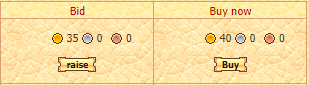
If an item has a buy now price, then you can click the buy button to buy the item instantly. If an item doesn't have a buy now price or you don't want to pay that price, you can place your bid by clicking "raise" and wait until the bidding period ends.
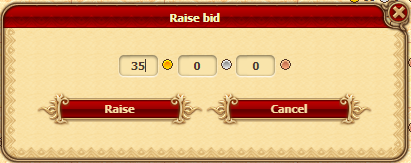
IMPORTANT: Placing a bid doesn't gurantee that you will get the item. If you place a bid for an item, other players can still place a higher bid before the bidding period ends. In case someone else outbids you, or buys the item using "buy now" option, your money will be returned back to you by post. If you hold the highest bid at the end of the bidding period, you will receive the items by post.
Warning! Returned bids and purchased items ARE NOT placed directly into your backpack. They are sent to you by post and you need to collect them before the post expires.
.:: Listing items for sale ::.
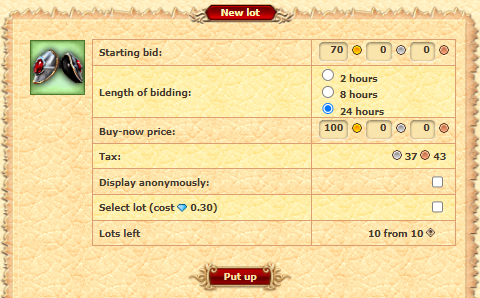
You can list your items up for sale in the auction by going to the New lot section. In this section, you can choose the item you want to sell from the backpack panel on the right.
When you click on the item, it moves to the new lot panel on the left where you can set the parameters.
- Starting bid: The base price of an item. Players can start bidding on this price and can bid higher. Mandatory parameter.
- Length of bidding: The length of the bidding period. You can choose 2 hours (short), 8 hours (average) or 24 hours (long). Mandatory parameter.
- Buy-now price: The price which players can buy the item instantly. Optional parameter.
- Tax: The tax is a payment you need to do in order to list your item in the auction. The tax depends on the value of the item (written on the item itself) and the bidding length.
- Display anonymously: If you want to display your lot anonymously, you can check this box. This box is available to premium users.
- Select lot: This option allows you to boost your listing, and place your lot up in the list. The price of this option is paid with diamonds.
- Lots left: The number of lots you can have at once is limited and depends on your premium level.
Warning! The fees you pay to use the auction are non-refundable. If you decide to cancel your listing or if your item is not sold, you will not get the tax and the diamonds you spent.
.:: Monitoring your lots ::.
In the My lots section you can monitor the status of the lots you have put up for auction.
In this screen, you can keep an eye on the current highest bid, the bidder and the time remaining until the bidding ends. You can also withdraw your lot by clicking the "Cancel" button.
Important: You can cancel a lot during the first 5 minutes and only if there is no bidder. When you cancel a lot, the tax you paid will not be returned.
|
Exchange Chamber |
|
In the Exchange chamber, you will find 3 sections; Exchange, My applications and New application. The purposes of these sections are:
- Exchange: You can sell your items to the open requests.
- My Application: You can monitor your exchange requests on this section.
- New Application: You can create new exchange request.
.:: Selling items to open requests ::.
You can sell your extra items to the players who need them on the Exchange section.
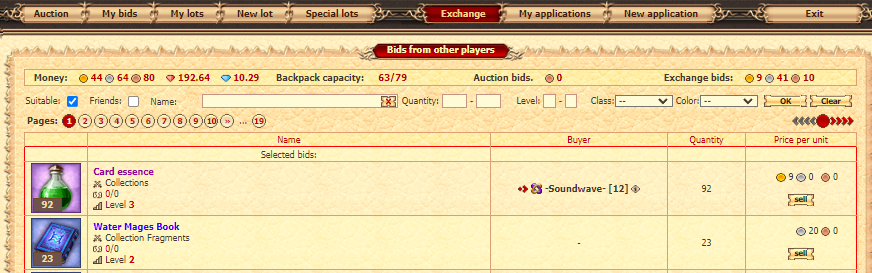
The exchange automatically filters and shows you only the items you have in your backpack, you remove this filter by unchecking the box "Suitable". You can also filter items the same way you can in the Auction chamber. To sell your items, click the button "sell" and choose the amount. It's that easy!
.:: Creating an exchange request ::.
On the "New Application" section, you can create a new exchange request for the things you need.
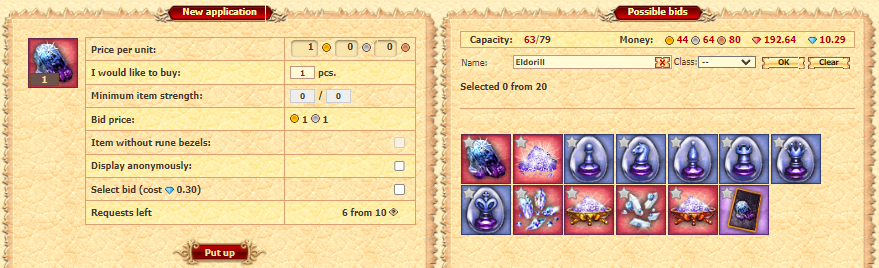
You can search for the items from the "Possible bids" panel on the right. Here you can search either by entering the name of the item, or you can choose a class and find your item between the pages. Once you select the item from the panel, it will move to the "New application" panel on the left. Here you can set the parameters. The request period is always set to 24 hours.
- Price per unit: The amount you are willing to pay for 1 piece of an item, by default it is set to the value written on the item but you can change it. This is a mandatory field.
- I would like to buy: The number of items you wish to buy, it is set to 1 by default. For most of the items you can change this but for some rare items you cannot.
- Bid price: The amount you will pay to create the request. This amount consists of the money you will pay for the items and the tax. If you cancel your request, you will be refunded fully or partially depending on how much of your request is filled.
- Item without rune bezels: Some items may have additional enhancements on them, check this box if you are looking for an item without them.
- Display anonymously: This option allows you to hide your name on the exchange list. It is avaliable with a premium account.
- Select bid: This option allows you to boost your request and place it on top of the list.
- Requests left: The number of exchange requests you can have simultaneously. This number depends on your premium account level.
.:: Monitoring your exchange requests ::.
On the "My application" section, you can monitor your open exchange requests.
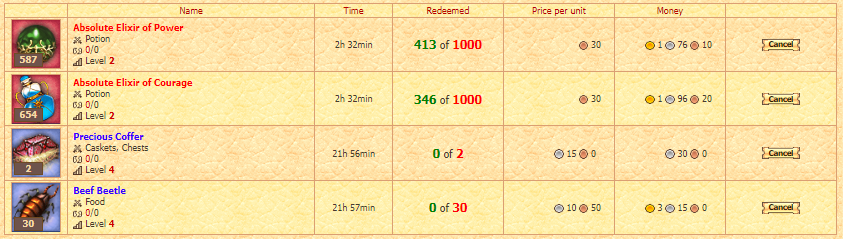
Under the "Time" column, you can see the time left until your exchange request expires. The request validity time is set to 24 hours for everyone and cannot be changed. The "Redeemed" column shows how much of your request has been filled. If you wish to cancel your request, you will receive the filled portion of items and the unfilled portion of money. You can see the amount of money you will get back under the "Money" column.
Last updated: October 2024